 ShotHue
Put a screen recording in a MacBook mockup and export a cover frame
Turn a desktop recording into a MacBook Pro demo. Export an MP4 and save a PNG cover at a chosen time without losing the timeline.
Open the MacBook Pro mockup ↗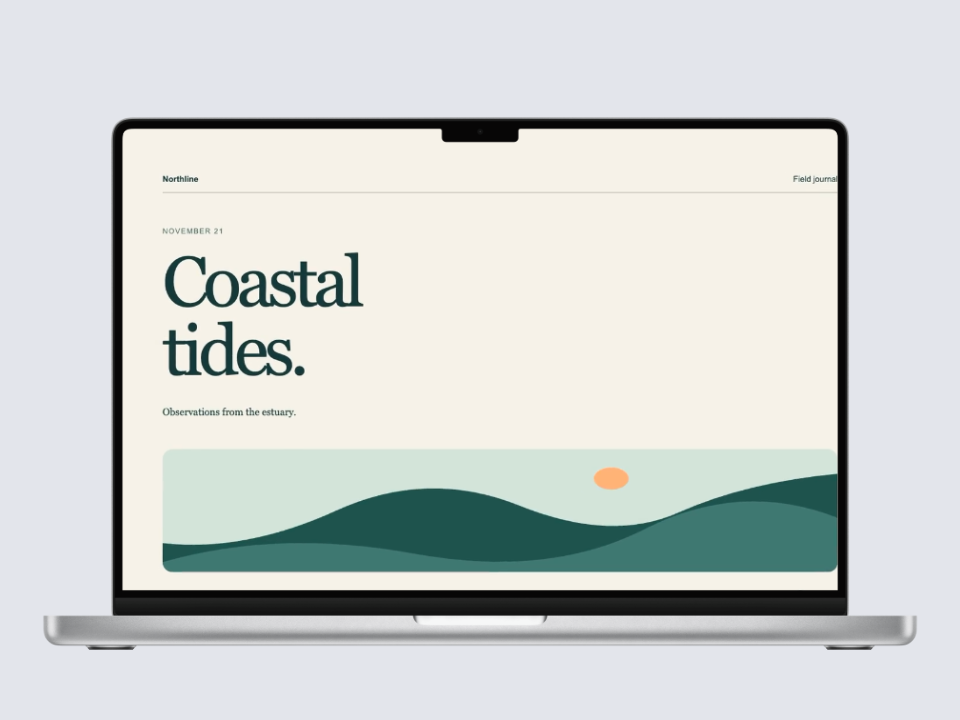
Import the recording
Open the 16-inch MacBook Pro mockup on this page and drop in a desktop recording. Check the four screen corners and the laptop base against your target canvas before choosing a background.
Pick a cover frame
Move the playhead to a clear moment after the page has loaded. This example uses 1.5 seconds. Choose Save current frame to download a PNG and keep the recording and camera clips in place.
Export the video from the same project
In Export settings, switch to Video / GIF and choose MP4 if your browser supports it. Check the output resolution, frame rate and duration. If the source and timeline have different lengths, choose which duration you want before downloading.