 ShotHue
Add a Chrome or Safari browser frame to a website screenshot
Frame a website screenshot, set the address bar text and choose a window ratio. Download the transparent PNG for a portfolio or product page.
Open the browser screenshot mockup ↗
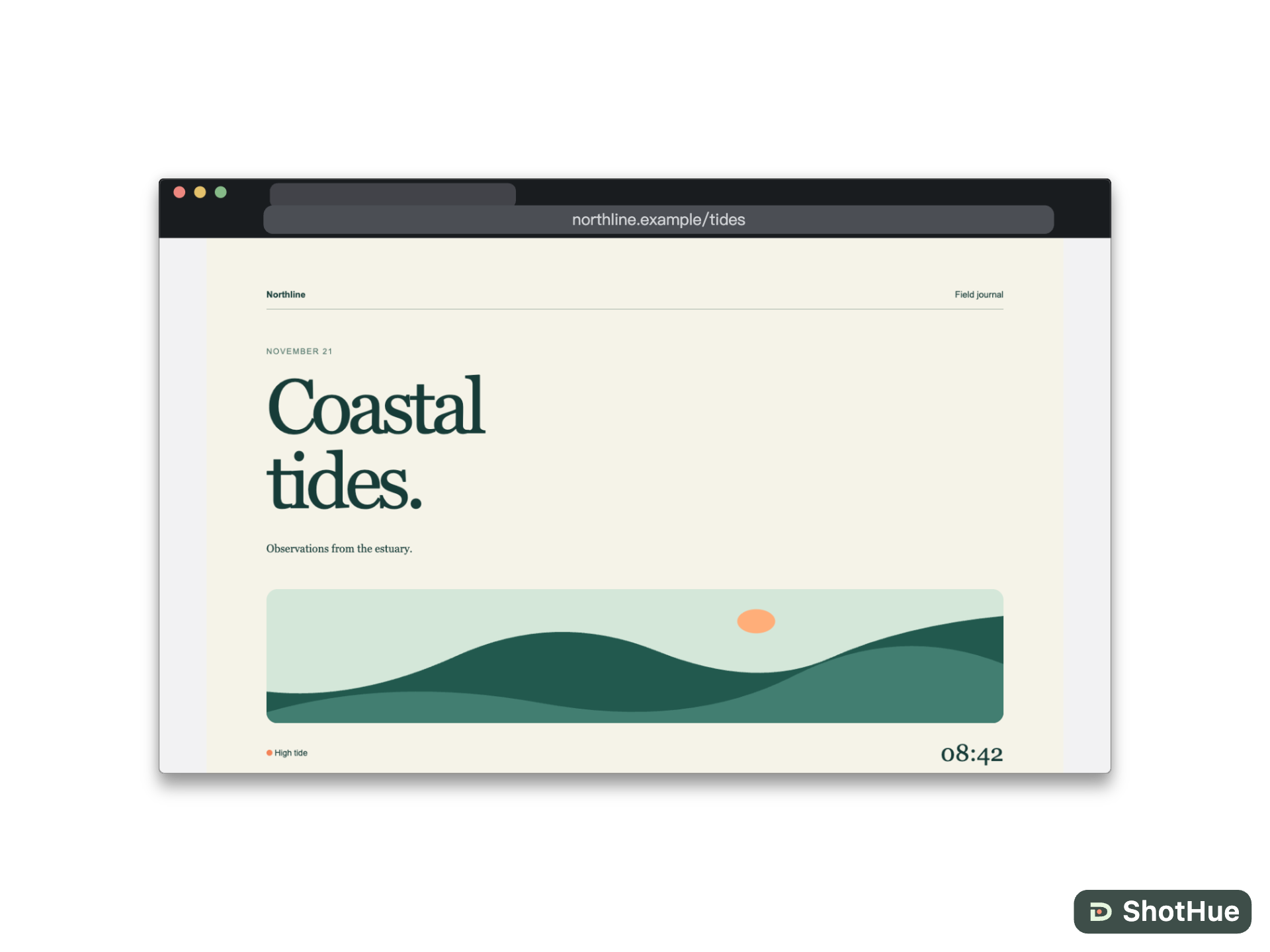
Capture the page content
Take a screenshot of the webpage itself so the original browser toolbar does not appear twice. Open the browser mockup and drop in the image. The example starts with a 1440 × 900 desktop screenshot.
Set the browser frame and address
Choose a dark Chrome frame or a Safari style in the Mockup panel. Enter the address you want to show and set the window ratio to 16:9. Choose Fit entire image to keep the screenshot’s edges visible.
Size the canvas and export
The window ratio sets the shape of the browser frame. The canvas ratio sets the dimensions of the whole image. We used a 4:3 canvas, selected a transparent background and exported a 1920 × 1440 PNG.