ShotHue
How to export an iPhone app demo as both MP4 and a PNG poster
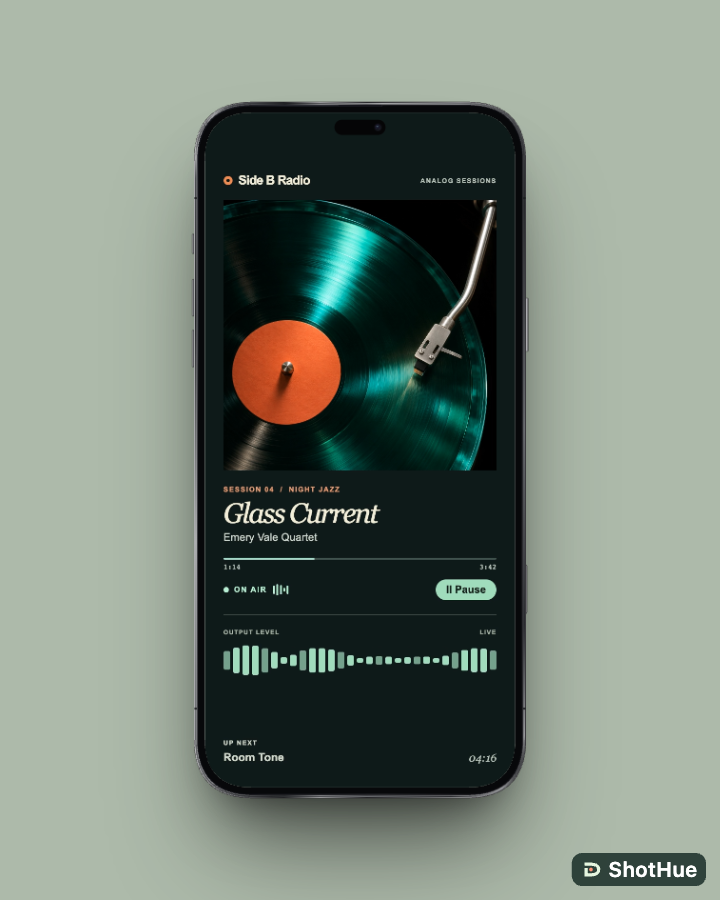
Pause the timeline and choose Save current frame for a PNG. Then export MP4 from the same project. Compare a four-second music player demo with its still poster.
Open the iPhone 18 Pro Max frame ↗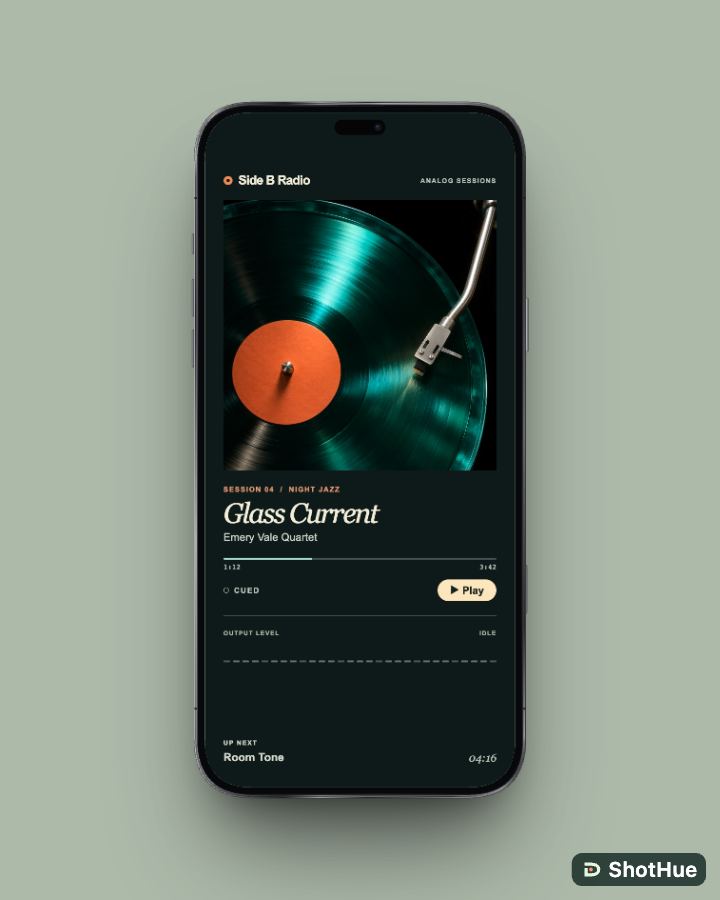
Frame the portrait recording
Import the downloadable 660 × 1434 recording into the iPhone 18 Pro Max frame. Choose a 4:5 canvas and check that the track name and playback controls fit inside the display.
Save a poster while the timeline is open
Scrub to a moment when the track name is clear, pause playback and choose Save current frame. The PNG is a separate download. Leave the timeline in place for the video.
Check the motion file
Choose Video / GIF in Export settings and select MP4 in a supported browser. The sample below contains 120 frames at 30 fps over four seconds, from a 24 fps recording. Play it through and compare the moving waveform with the PNG.